Why a canvas?
When we started building SolversBoard, the obvious design was: show a question, let the student type their answer, check it, give feedback. That's how every other edtech tool works.
We didn't build that.
The reason is simple: typing an answer tells you almost nothing. If a student types "42" into a box, there are two possible explanations. They worked through the problem carefully and arrived at the correct answer. Or they guessed. Or they Googled it. The typed answer doesn't distinguish between these.
Handwriting your working changes this completely.
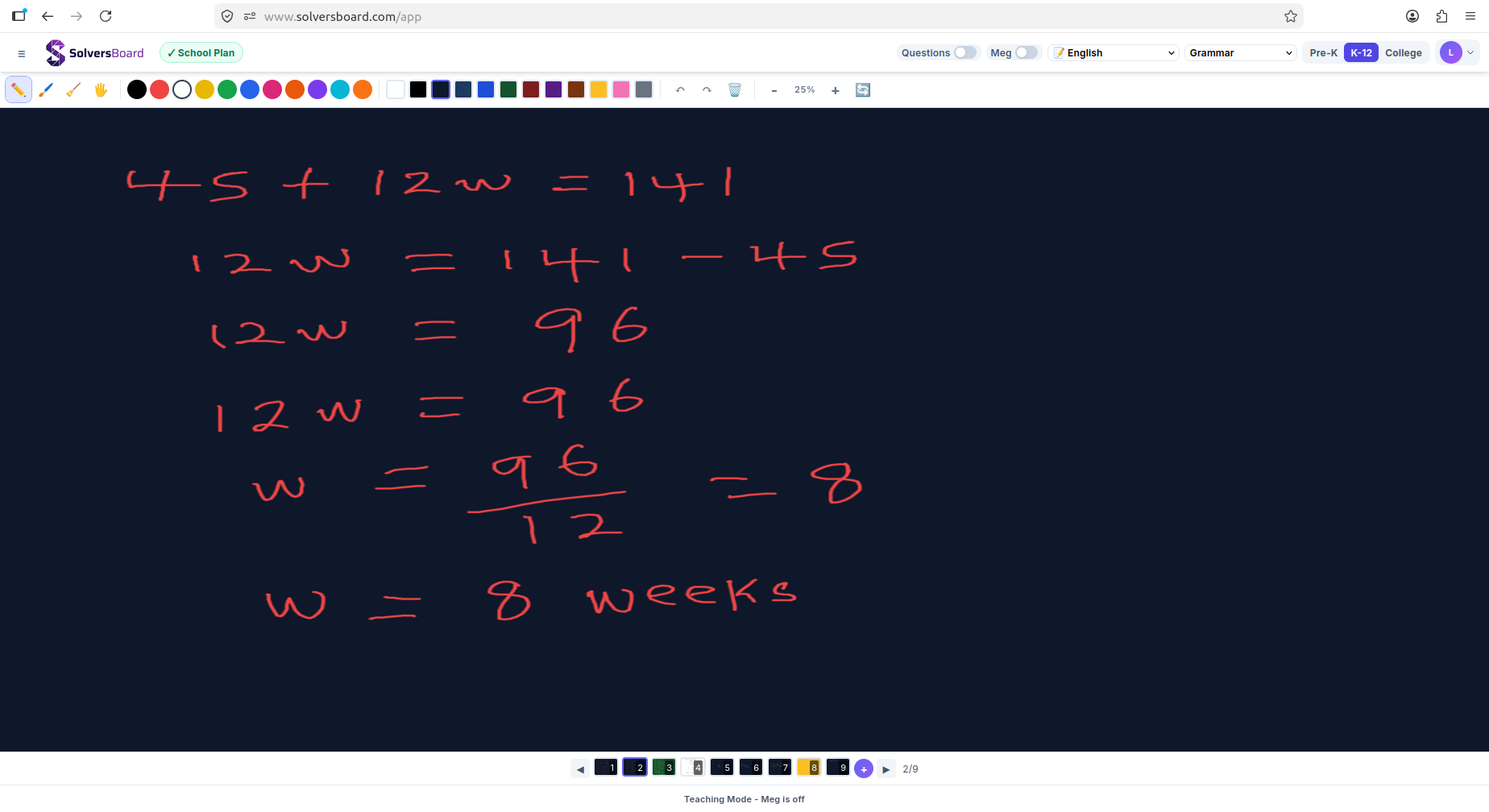
When you pick up a stylus (or your finger) and write out your solution - the equations, the substitutions, the intermediate steps, the units - you are doing the cognitive work that produces learning. And when Meg reads that working, she can see your actual thought process: where you started, what method you chose, where you went right, and where you went wrong.
The canvas is not a gimmick. It is the mechanism by which SolversBoard delivers the kind of feedback that actually helps students improve.
The canvas tools
Pen
The default tool. Draws freehand lines as you write or sketch. Designed to feel as close as possible to writing on paper - responsive, smooth, and natural on both touchscreen and stylus.
Pen strokes are pressure-sensitive on devices that support it, giving thicker and thinner lines that mirror physical writing. This matters for legibility: equations written in a natural hand are easier for both Meg and the student to read back later.
Highlighter
A semi-transparent wide stroke for marking up existing content - circling a step you want to come back to, underlining a key value in the question, or colour-coding different parts of a working. The highlighter renders above existing pen strokes so your annotations don't obscure the work beneath.
Eraser
Removes pen strokes. The eraser can be set to different sizes for precision work (removing a single digit you wrote incorrectly) or broad sweeping (clearing a large section of working). Double-tap the eraser button to clear the entire current page.
Shapes
Draw geometric shapes with clean edges - circles, triangles, rectangles, lines, and arrows. Useful for physics diagrams (force arrows, circuit components), geometry problems (drawing the shape described in the question), and organisational annotations (boxing off sections of working).
Colour palette
Switch between multiple ink colours during a session. A common use: write your initial working in black, mark corrections in red, highlight key steps in blue. Colour-coding working is a study technique in itself - it makes the structure of a solution visible at a glance.
Zoom and pan
For complex working that needs more space - a long algebraic derivation, a multi-step chemistry calculation, a detailed geometry proof - zoom out to see the full canvas, or pan across a large drawing. The canvas is effectively unlimited in size; you are never constrained by the visible area.
Multi-page canvas
Each session can have multiple canvas pages. When one page is full, add a new one with a single tap. Pages are numbered and navigable - you can move between them freely. All pages are saved as part of the session and visible in session inspection.
Multi-page sessions are common for longer practice blocks: one page per question, or one page per sub-topic, keeps working organised and easy to review.
How Meg reads the canvas
When you tap Check My Work, SolversBoard captures a snapshot of your current canvas page and sends it to Meg alongside the question. Meg uses vision capabilities to read your handwriting - she can parse equations, fractions, exponents, subscripts, arrows, and most common mathematical notation.
She reads your working in the order it appears on the page (top to bottom, left to right) and analyses it step by step:
- Is the method correct?
- Is each step logically valid?
- Where does the working first diverge from the correct approach?
- Is the final answer correct?
The quality of Meg's feedback is directly proportional to the quality and legibility of the working on the canvas. Clear, structured working - one step per line, equations written horizontally, labels on diagrams - gives Meg the most to work with. Working that is cramped, overlapping, or very faint may produce less specific feedback.
The canvas and learning science
The research behind handwriting and learning is robust and well-replicated. Studies consistently find that handwriting (versus typing) produces better retention, deeper processing, and stronger performance on later assessments - even when the typed notes or answers appear to contain more information.
The proposed mechanism is desirable difficulty: handwriting is slower and more effortful than typing. That effort forces the brain to select, organise, and encode information more deeply. The struggle is the point.
For mathematics and sciences specifically, the effect is even stronger. Writing out an equation - the act of forming each symbol by hand - activates motor memory alongside semantic memory. You remember the formula better because you've written it, not just seen it.
SolversBoard's canvas is designed to exploit this. The friction of handwriting is not a design flaw. It is the feature.
Canvas in challenge mode
Challenge mode - the timed rapid-fire question format - also uses the canvas. You write your answer under time pressure, tap Check, get an immediate result, and move to the next question. The canvas resets between questions, and all pages are saved for review.
The time pressure of challenge mode combined with the physical act of writing creates a simulation of the exam environment that's difficult to replicate with a keyboard. Students who practise on the canvas in challenge mode report that sitting an actual paper exam feels familiar in a way that purely digital practice doesn't produce.
Canvas in session inspection
In session inspection, reviewers (teachers, parents, admins) can see the student's complete canvas work for each question in the session. The canvas is rendered exactly as the student drew it - colour, stroke weight, layout, all pages - giving the reviewer a faithful view of the student's working process.
This is the deepest insight the platform provides: not "the student got this question wrong" but "the student got this question wrong, here is exactly what they tried, and here is where their reasoning broke down."
Screen recording
For students who want to record their working process - for review, for sharing, or for self-assessment - SolversBoard includes a screen recorder. The recording captures the canvas as you write, including Meg's feedback as it appears. Recordings can be saved locally and shared externally.
This feature is used by some teachers as a form of mathematical viva: students record themselves working through a set of problems and submit the recording alongside the session share. It provides a richer assessment artefact than a final answer or even a static canvas snapshot.
Technical notes
The canvas renders via HTML5 Canvas API and is optimised for low-latency stroke rendering on both desktop and mobile devices. Strokes are processed locally before being saved - drawing remains smooth even on slower network connections.
Canvas data is stored in a compressed format alongside session metadata. A typical session's canvas data - several pages of handwritten working - uses less than 500KB of storage, making it efficient to store and fast to load on review.
The canvas supports stylus input on iPads and Android tablets via the Web Pointer Events API, including pressure sensitivity on Apple Pencil (first and second generation) and Samsung S Pen. On desktop, it works with drawing tablets (Wacom, Huion) as well as mouse input. On mobile without a stylus, finger input works well for most working - the stroke width is automatically adjusted for touch.
The canvas is the foundation of everything SolversBoard does. If you haven't tried writing on it with a stylus, start there - it's the closest to paper you can get on a screen, and it changes what the AI can do for you.
Start your 7-day free trial at solversboard.com. Credit card required.